Welcome to PiSignage!
PiSignage is a digital Signage platform that helps transform your screens into a powerful digital Signage network!
For the past decade, we’ve helped people just like you, seamlessly manage and control their screens. PiSIgnage is Reliable, Affordable, Powerful and the right solution for you.
pisignage.com/get-started is a great guide if you are looking to just setup and begin using the platform.

An overview of the platform
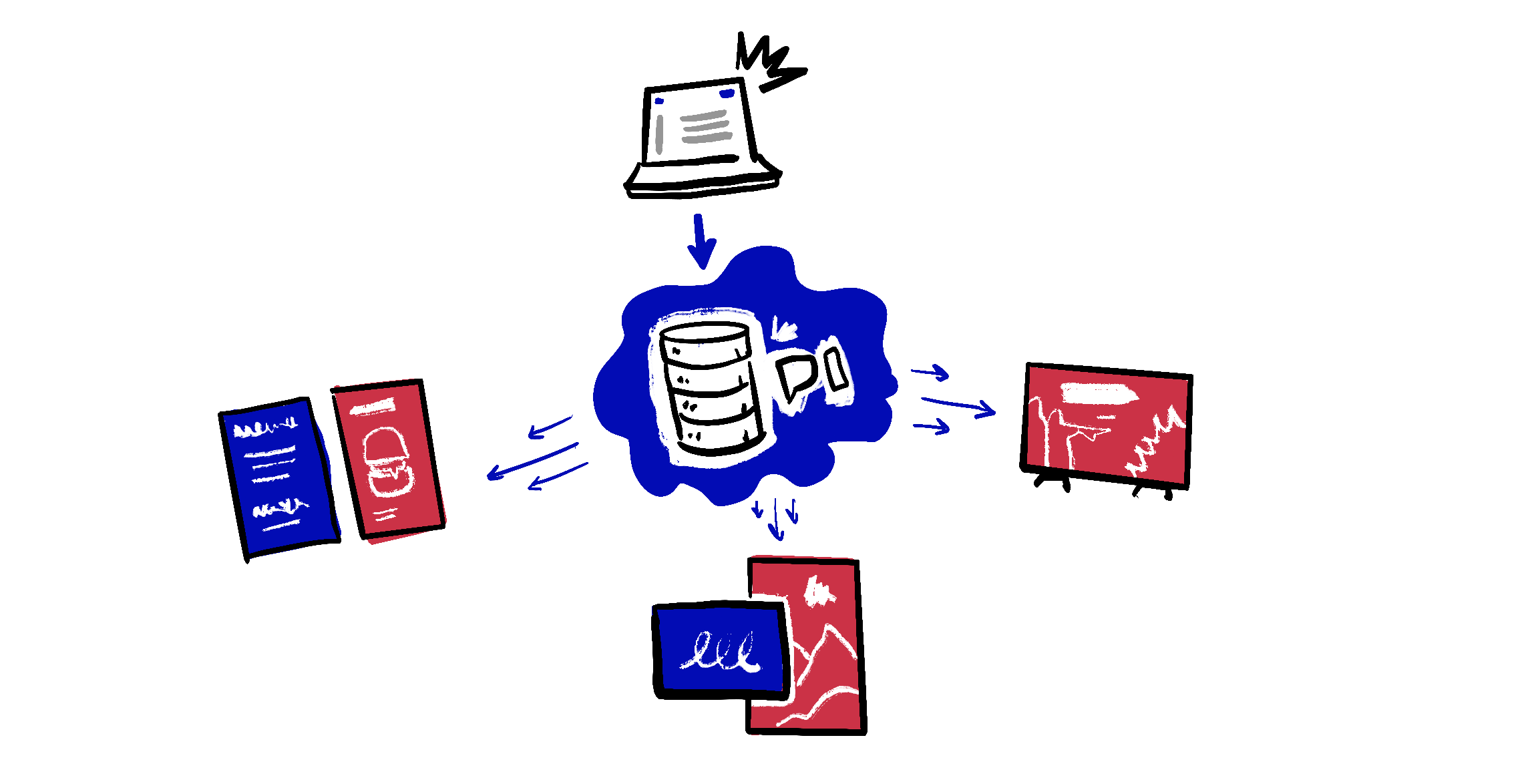
What is PiSignage? PiSignage runs a central server which is where you login to manage your screens. Your screens connect to the server periodically and when there’s new content or changes in your content schedule it downloads the changes and continues to play.
We do have a Video overview here 👇🏽
This video walks you through navigating the PiSignage platform, uploading your first content, and deploying it to your screens.
Your content plays even when offline
What happens if my player disconnects from the internet or goes offline? Well nothing to worry about - it continues to play all downloaded assets as if nothing happened and the minute its back online it downloads any new changes you may have pushed
Data storage
How secure is my data? All of your data is stored securely using Amazon web services. We have servers across the US, Europe and Australia to help you store your data where you’d like
Self hosted solutions
Can I host the server on my end? You can host the server using our self hosted enterprise solution. It comes with SSO and SAML support and needs 25 players minimum. We help you set up either with SSH access or if you want to do it yourself we have Ansible scripts and documentation for you to follow. Self Hosted covers the same.
Looking for our free open source server instead? Open Source vs Self Hosted covers how the two compare.
Player
Choose the right setup for yourself. Pisignage.com/hardware covers all of the options available to you.
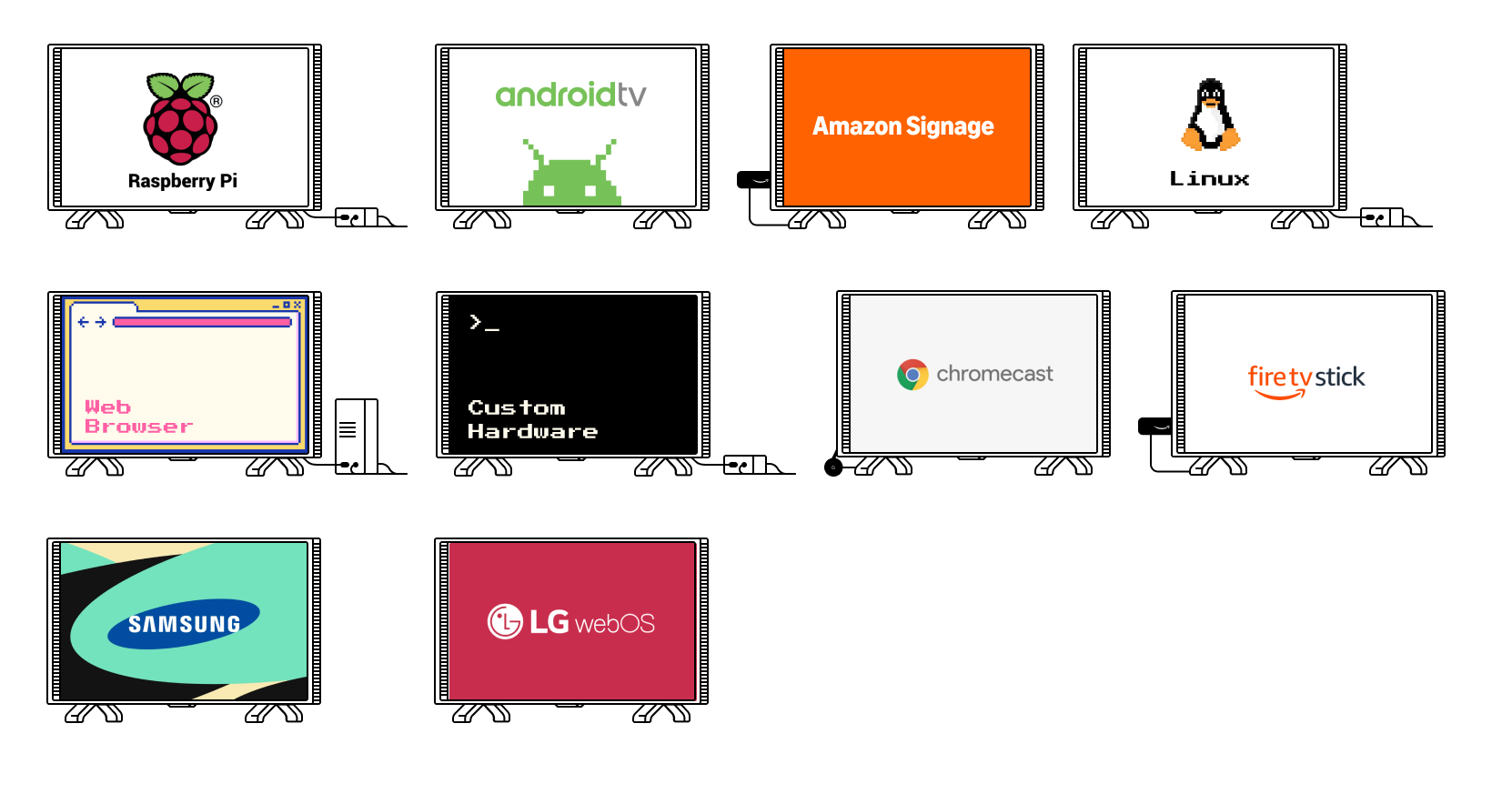
A few considerations you should think about as you choose your first player are
- What is the available infrastructure in your space? Do you have a single plug point or multiple (While our android player works within the TV, adding a Raspberry pi version may need another plugpoint for the raspberry Pi)?
- Are you pre-construction or post-construction?
- What is your budget?
- What type of content do you plan to play? (While images and videos play everywhere, more complex content like kiosks or webpages may need more powerful hardware)
If you need help receiving a bundled solution where the hardware comes with PiSignage included do consider looking at one of our trusted partners in your area at pisignage.com/partners
Software
For the player
Setting up a player is easy and quick.
- For our Android TV and Amazon Signage Stick you simply have to download the appropriate app.
- For our PWA or on the Web visit pisignage.com/player2 on the browser of your choice.
- For the Raspberry Pi you would need to prepare a SD card which takes only a few minutes.
You can find complete guides for all of the above here
Self Hosted
Our self hosted enterprise server comes with SSO and SAML support and is $20/year per player with a $500 minimum.
Self Hosted contains all the information you need from the server needed to all details on how to set this up.
Our open source server is available here via Docker. Open Source vs Self Hosted covers how the two compare.
Whitelabel
White label options come built into your plan and we do not charge you any additional amount for the same. You will however need to have 25+ players to unlock the same. Domain mapping is the main thing extra and the rest can be done in Branding Settings. White Label details out all the details on the same.
Using the platform
Once your player is setup, all of your screens and content are managed from the platform. Each tab has its own guide.
- Dashboard - The Dashboard is where you can monitor your screens and content at a glance.
- Screens - The Screens tab is where you manage and monitor your screens.
- Groups - The Groups tab is where you manage and schedule content for groups of screens at a time
- Assets - The assets tab is where you can upload your content.
- Playlists - The Playlists tab is where you sequence and group your content.
- Locations - The locations tab is where you can manage the on/off schedule for screens based on their location
- Categories - The categories are how you tag all playlists, groups, etc across your account and organise the same.
- Reports - Reports allow you to monitor and generate charts and reports from across your account based on the applied filters.
- Template Designer - Template designer allows you to create custom layouts that can then be used in Playlists and groups.
- App Store - The App Store is where you build your own apps for your screens using widgets and templates.
Your account
- Signup and Login - You can create a new account at PiSignage.com/signup
- Settings - The Settings tab is where you manage the settings for your whole account
- Collaborators - Collaborators let you add team members to your account with different permission levels
- Subscriptions and Licenses - The Subscription and License tab is where you manage your licenses, subscription, credits and storage
- Search, Help and Profile - Search, download, change the language, get help and manage your profile from the top of any page.
- Support - We would love to hear from you!
More on your player
- Raspberry Pi - A powerful player that offers complete control and robust performance.
- Linux - Run PiSignage on any Linux desktop or laptop.
- Android - Setting up your Android Player
- Amazon Signage Stick - Setting up your Amazon Signage Stick
- Connecting other hardware - Use buttons, switches and keyboards to control what plays on your screens.
Features you may have missed
Override all
Need to get a message across all of your screens in an emergency? Override All is an option to override all content across all players online in all groups with the chosen message or playlist. This is useful as a safety feature for emergencies or to deploy priority messages across campus. Groups covers the same.
Emergency broadcast
Can I show a message over everything that is playing? Emergency broadcasts are messages that appear as overlays over all content in the group of screens. These can be positioned as needed. Groups covers the same.
Tickers
Can I scroll news or a message along the bottom of my screens? Add a RSS or message based ticker to the bottom of your screen across playlists. Groups covers the 3 kinds of tickers you can choose from.
Schedule daily deploy
More than one person adding content across the day? Choose a time for all draft content to be deployed daily. This is great in scenarios where more than one person may add content across the day. Groups covers the same.
Kiosk mode
Can my screens be interactive? Kiosk mode enables touch and mouse controls with your screen. Playlists and content will play as normal on the screens until a touch or mouse movement is detected, at which point the configured webpage will display and allow the user to interact with the webpage. Groups covers the same.
Feed and Terminal
How do I know what is actually playing on my screen? The Feed shows in realtime the content playing on the screen. This is a screenshot directly from the device and NOT a preview of what is supposed to play. Terminal allows you to deploy commands directly to the device via SSH to get realtime information and to control the device. Screens covers the same.
Layouts and zones
Can I show more than one thing on a screen at a time? In any layout the screen is divided into zones. These zones are where you configure and place assets. PiSignage supports upto 6 zones in a layout. Playlists covers layouts and Template Designer helps you create your own.
Apps and integrations
Can I bring in content from other platforms? We do have a wide array of apps and integrations which can help bring your content from elsewhere straight to your screen. These include Media RSS, Power Bi, Canva, Google Slides, Youtube, Google Sheets, Instagram, Twitter/X and Facebook. Assets covers each of these.
Monthly reports
Can I export my reports? Generate monthly reports by month. This is especially useful when you need to export monthly snapshots of certain reports. All data can be viewed as a table below the graph. The same can be downloaded as a CSV as needed. Reports covers the same.
2 factor authentication and SSO
How do I keep my account secure? Optionally Setup your 2 factor authentication (via your app or through an email OTP). You can also use Single-Sign On through SAML. We also have location based security where if you login from a different region than you usually do we ask for an OTP. Signup and Login covers the same.
Storage
How much storage do I get? In PiSignage we add 1GB of storage per player license active. i.e if you have 10 active players, your account storage is 10GB. You can always choose to expand your storage by following the instructions present in Subscriptions and Licenses.
Support
Support at PiSignage comes directly from the team building the product and is available via support@pisignage.com . We typically reply under 24 hours.
In the mean time why don’t you ask an AI model of your choice by clicking on the button below.