Subscriptions and Licenses
The Subscription and License tab is where you manage your licenses, subscription, credits and storage
You can find Subscription and License in the System section at the bottom of the main menu.
Only users with the right to edit settings or make payments can see this page, and only users with the right to make payments can pay. Collaborators covers how to give these rights.
How pricing works
| Plan | Price | Includes |
|---|---|---|
| 2 Players | Free | 2 player licenses, 2 lifetime subscriptions, Product Support |
| New Player | $35 for the first year of every new player | 1 player license, 1 yearly subscription, 12 credits, Product Support |
| Existing Player | $20/year from the second year onwards for all players | 1 yearly subscription, 12 credits, Product Support |
Your first 2 screens are free forever. Every new screen you add is billed as a New Player for its first year and moves to Existing Player pricing from the second year onwards. There are no setup fees, no hidden costs and no long-term contracts.
You can cancel your subscription at any time and your screens will continue working until the end of your billing period. For deployments over 50 screens we offer volume discounts - please get in touch via pisignage.com/support.
pisignage.com/pricing has a calculator to help you project your costs.
Licenses, subscriptions and credits
- License: A license is bought once for every new player. An unlicensed player will often show the banner “this player is powered by PiSignage”.
- Subscription: A subscription keeps your player connected to PiSignage. Every yearly subscription comes with 12 credits.
- Credits: Credits are consumed by the active players/screens in your account. The Subscription card shows how many months your credits will last.
- Storage: In PiSignage we add 1GB of storage per player license active. i.e if you have 10 active players, your account storage is 10GB.
Monitoring
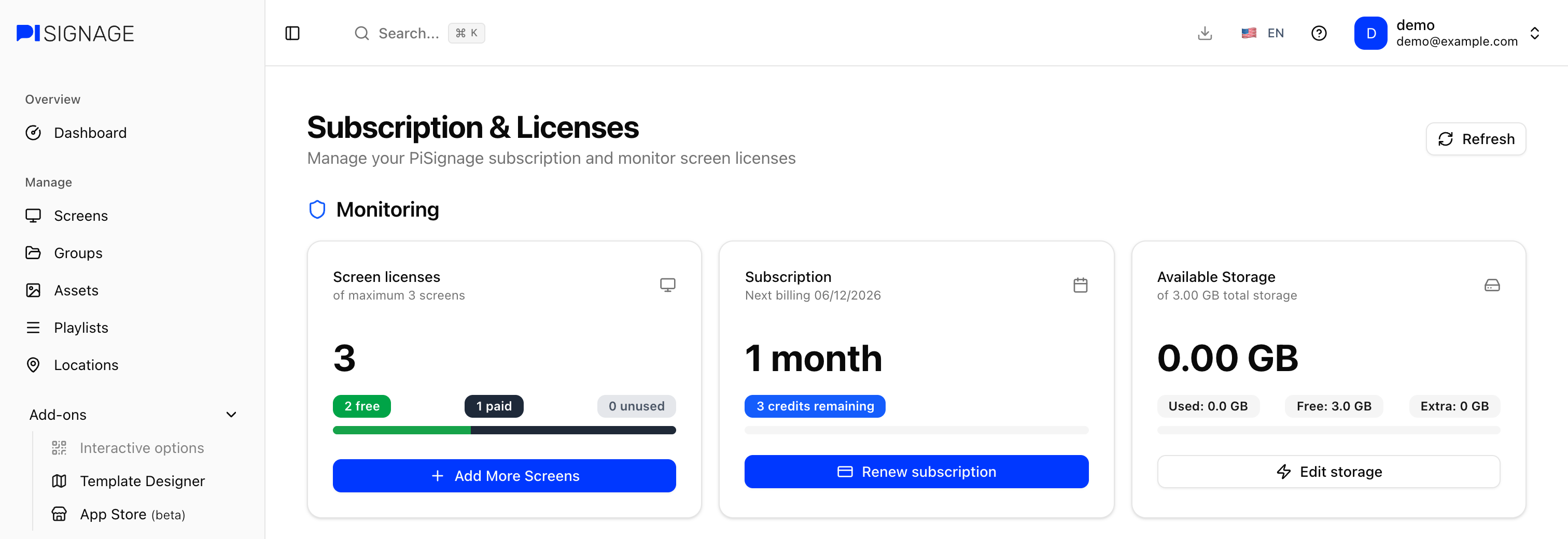
The cards on top of the page show where your account stands. Click on Refresh on the top right if the numbers look out of date after a payment.
- Screen licenses: The number of licenses in use out of the maximum screens on your account, split into free, paid, unlicensed and unused (or needed when you have more screens than licenses)
- Subscription: The months left on your subscription (or Expired), your next billing date and the credits remaining
- Available Storage: The storage used by your assets out of your total storage, along with any extra storage you have added
Current Plan
Current Plan shows your plan, your next billing date and the price of your screens. You can switch between the Price per screen and the price for all of your screens, monthly or yearly. Available Credits shows the credits in your plan, the credits remaining until the next billing cycle and the credits you need every month.
Add more screens
Need more screens than you have licenses? Simply add more screens before registering them.
- Click on Add More Screens on the Screen licenses card.
- Choose License with subscription or License only.
- Enter the Number of screens to add and check the Pricing Breakdown. Click on Customize Invoice Details if you would like to add your company name, address or tax ID to the invoice. You can also send a copy of the invoice to yourself or another email.
- Click on Continue to Checkout and choose your payment method.
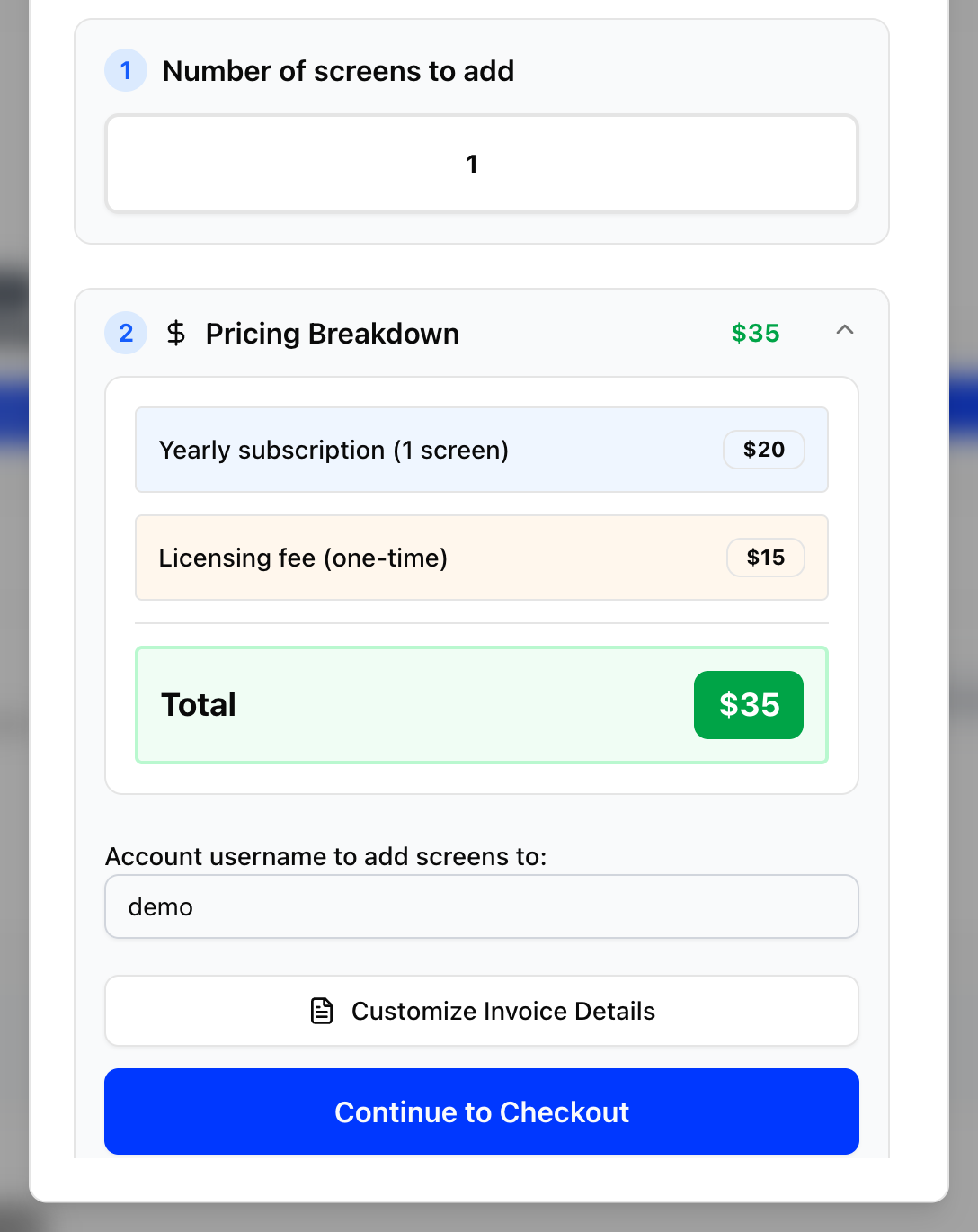
The yearly subscription is added to your current billing cycle. The licensing fee is a one-time payment that activates your screens immediately.
License your screens
Once you have licenses available, you can license your unlicensed players in Screens with the License player (🪪) action or the License players bulk action.
License Management under Subscription Details shows the number of licensed and unlicensed screens. If you have unlicensed screens click on License Screens Now to view the same in Screens.
Renew your subscription
- Click on Renew subscription on the Subscription card. The button turns red once your subscription has expired.
- Choose Yearly, Monthly or Custom and the number of years, months or subscriptions (1 subscription = 12 credits).
- Click on Continue to Pricing and check the Renewal Breakdown.
- Click on Continue to Checkout and choose your payment method.
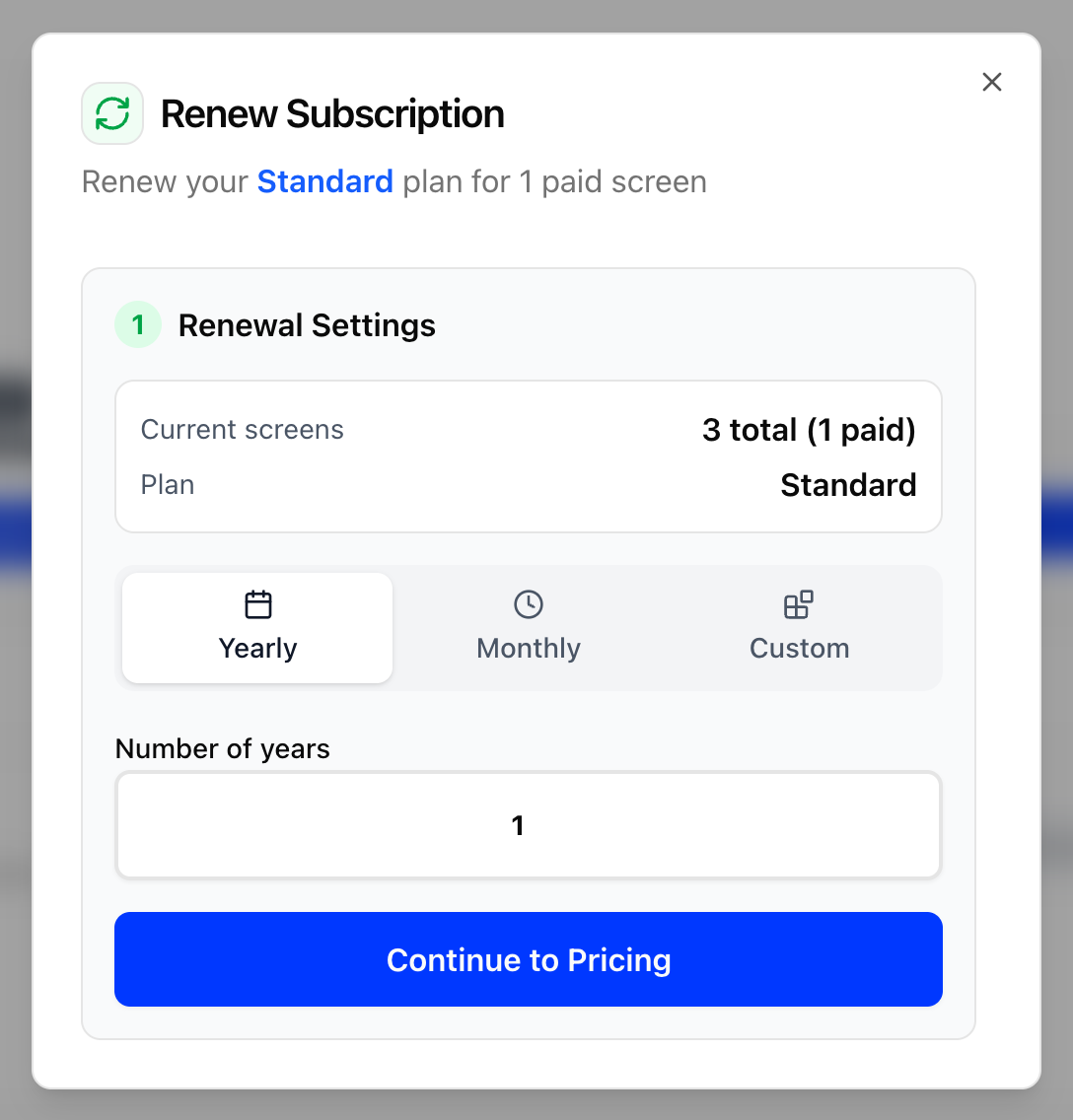
Your subscription is extended from your current expiry date, so you can renew ahead of time.
Expand your storage
- Click on Edit storage on the Available Storage card.
- Click on Edit Storage and enter your new storage in GB. It must be a multiple of 2.
- Check the Storage Modification Summary for the credit cost per month and your available credits.
- Click on Confirm Changes.
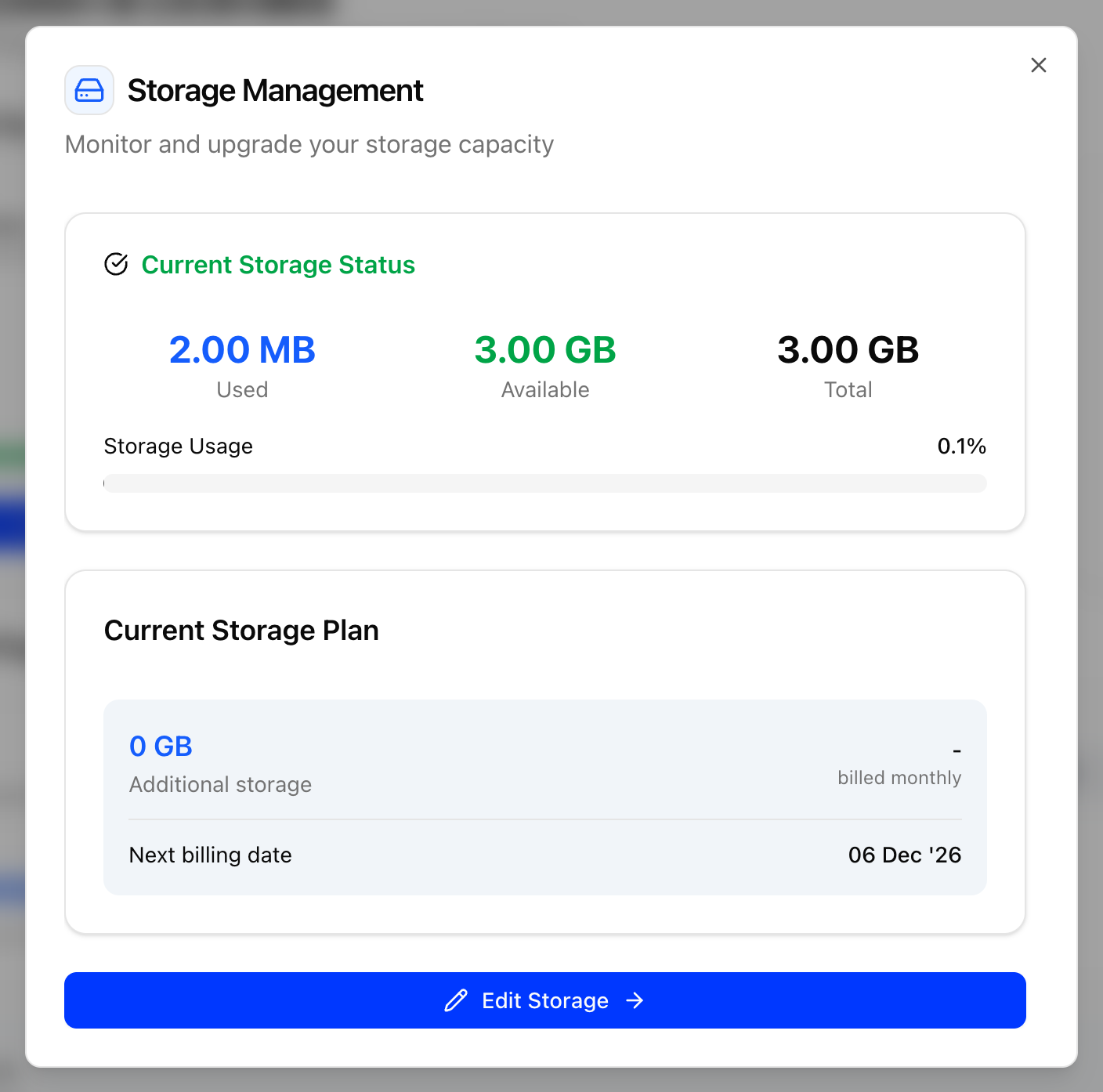
Extra storage is paid for with your credits, so you will need enough credits to cover the same. If you reduce your storage, it stays active until your next billing date and you can reactivate it from Deleted Storage until then.
Subscription Details
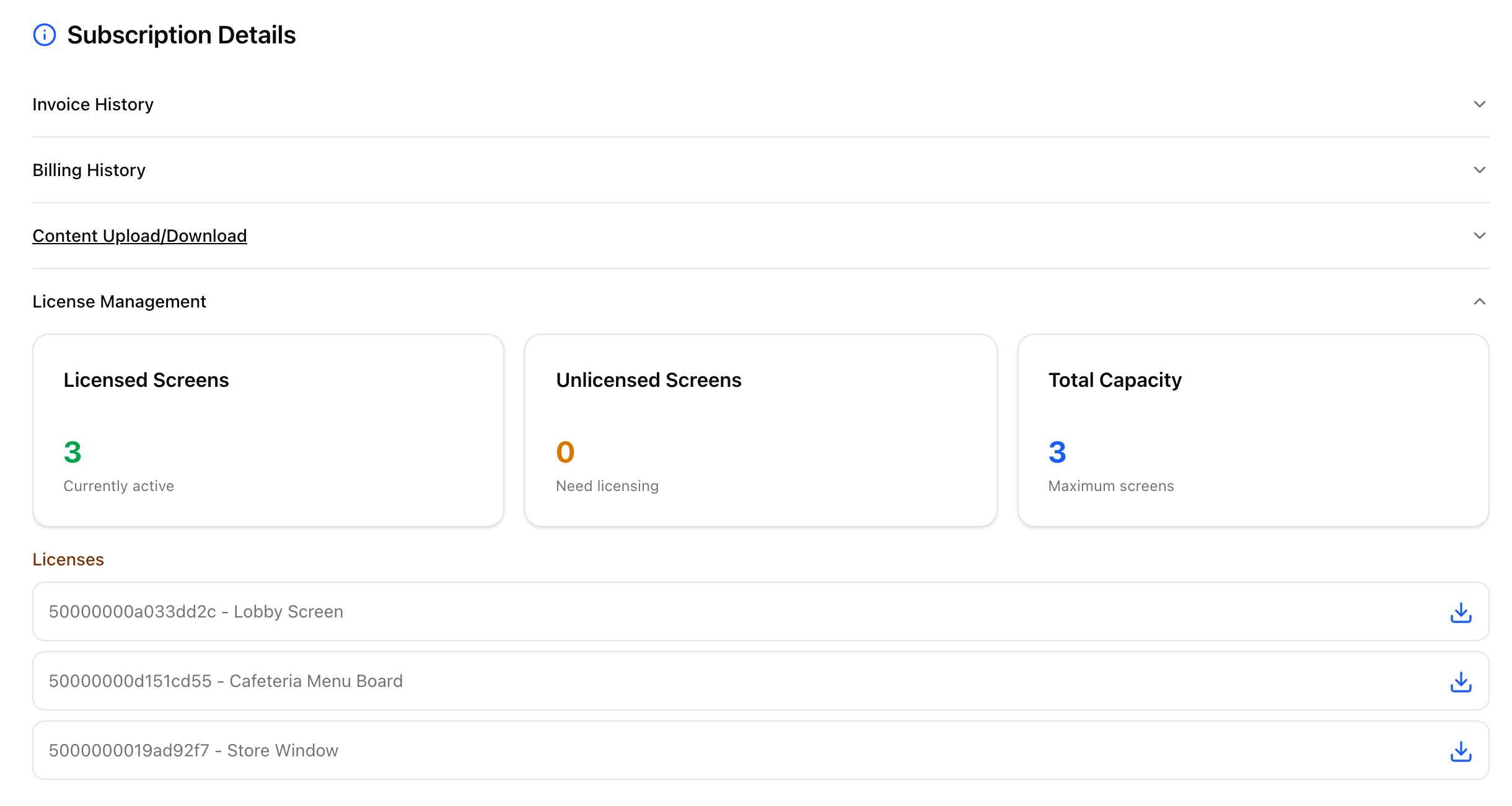
- Invoice History: All of your invoices and credit notes. Click on an invoice number to open the same.
- Billing History: Your purchases, credits and licenses. Use the filter to view one type at a time.
- Content Upload/Download: Your content upload/download for the current month. If you go over the limit you can click on Reset to reset the same using your credits.
- License Management: Your licensed and unlicensed screens along with the list of your licenses. You can download the license file of each player from here.
Payment methods
At checkout you can choose Pay with Stripe (Credit/Debit Card), PayPal or Pay in INR.
If the card form does not load, try turning off your ad blocker for the page.
Seeing “You do not have the payment rights for this account.”? The owner of the account needs to give you the right to make payments in Collaborators.
Self hosted servers
On a self hosted server this page shows the license of your server instead. Self Hosted covers the same.