Connecting other hardware
Use buttons, switches and keyboards to control what plays on your screens.
Your PiSignage player can react to hardware connected to it. Switches wired to the GPIO pins of a Raspberry Pi can move through your playlist or pause it, while a key pressed on a keyboard or hardware can play a playlist of your choice.
GPIO inputs
GPIO media control lets you connect three switches to your Raspberry Pi to move forward, backward and pause/play your playlist.
Hardware connections on a breadboard
- Connect Pin 1 (3.3v) (or pin 17) of your Raspberry Pi to a 1k resistor.
- From the 1k resistor take three wires and connect them to three different switches.
- Connect the switches to pin 11 (GPIO 17), pin 12 (GPIO 18) and pin 13 (GPIO 27).
| Switch connected to | Action |
|---|---|
| Pin 11 (GPIO 17) | Forward |
| Pin 12 (GPIO 18) | Backward |
| Pin 13 (GPIO 27) | Pause/play playlist |
Enable GPIO media control
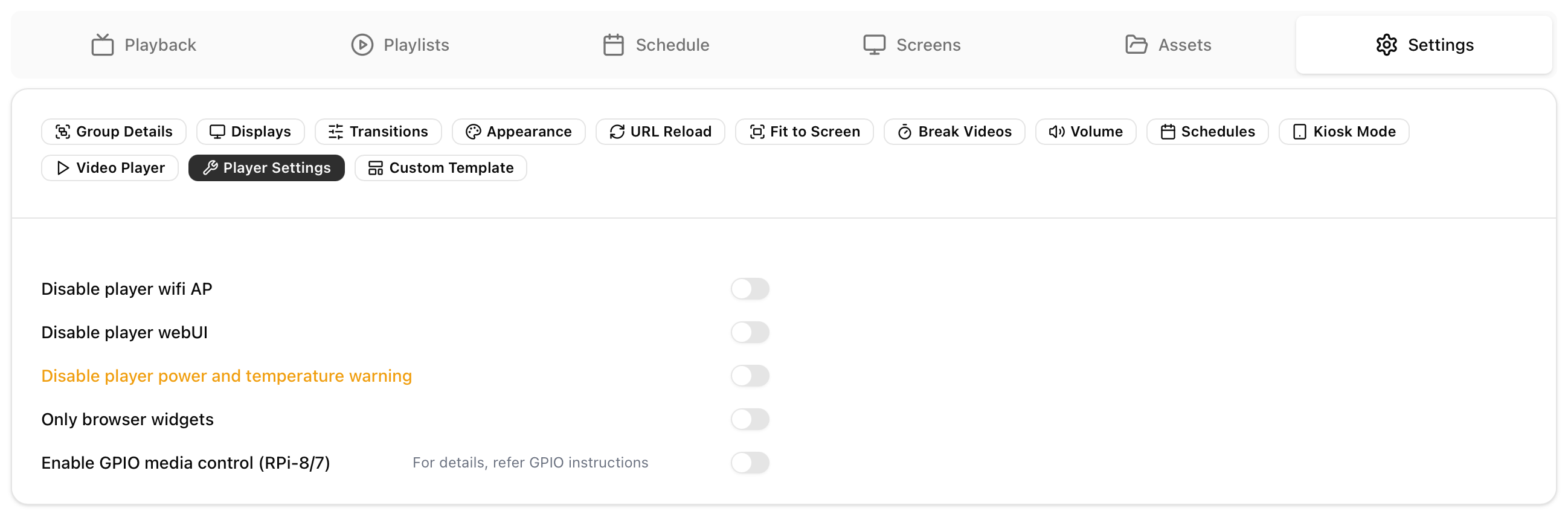 GPIO media control is turned on for all screens in a group.
- Open your group and go to Settings
- Under Player settings turn on Enable GPIO media control (RPI-8/7)
- Deploy the group
All content is staged in PiSignage and NOT sent to the player until you hit deploy. See Groups for more details.
Play a playlist using GPIO22
A switch connected to the Raspberry Pi GPIO22 pin (pin 15) can also trigger a KeyPress Playlist. Simply turn on Use GPIO22 as the key in the playlist settings as explained below.
Keystroke events
A KeyPress Playlist plays when a key is pressed on the keyboard or hardware connected to your player. Every key pressed corresponds to a code value and you can configure the playlist to play on receiving a certain code value.

- Click on your playlist and navigate to the settings tab
- Choose KeyPress Playlist as the type of playlist
- Enter the Key-code to trigger playlist. PLEASE MAKE SURE TO ENTER THE SAME IN DECIMAL AND NOT HEX VALUES. Some examples for a standard keyboard are available here
- Optionally turn on Use GPIO22 as the key to use hardware connected to the Raspberry Pi GPIO22 pin, or Play only once to play the playlist in its entirety once pressed
- Add the playlist to your group and deploy
Playlists covers all of the playlist types and their settings.