Documentsandroid
Setting up your Android Player
What you need
- An Android TV or Android TV box with the Google Play Store (Android TV 7.0+)
- 100MB+ storage, plus enough storage for your content to play offline
- A working internet connection
Installing the app
- Open the Google Play Store on your Android TV and download the PiSignage app
- Open the app and note the 16 digit number that appears on screen. This is your Screen ID
Prefer to install the APK yourself? The APK (with OTA updates) is available at pisignage.com/downloads
Fire TV Stick
- Connect your Fire TV Stick to your TV and to power
- Download the PiSignage app from the FireTV Store and open it
- Note the 16 digit number that appears on screen
Chromecast with Google TV
Chromecast was discontinued in 2024 and has legacy support only for existing devices. You can still download the PiSignage app from the Google Play Store.
Register your player
Once you see the 16-digit code on the screen, you are ready to register the same on PiSignage.
- Go to Screens and click on the + Add Screen button in the top right
- Enter a Screen Name and the 16 digit code as the Screen ID
- Choose the Group to add the player to and set its Timezone
- Click on Add Screen
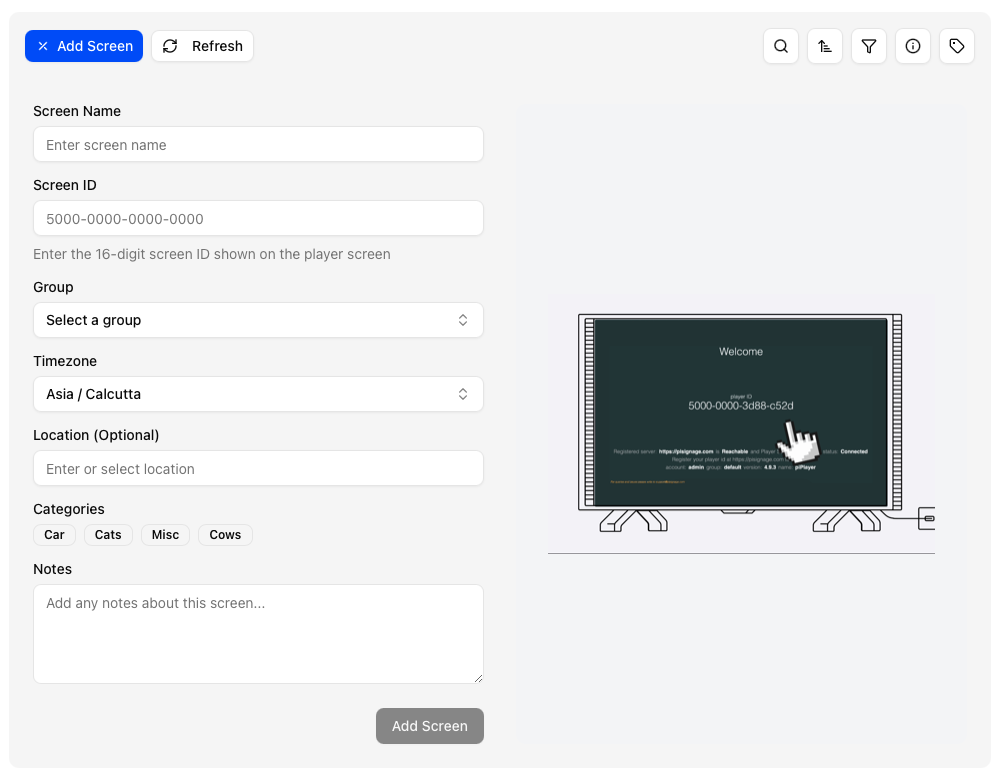
Screens covers all of the details you can enter when registering a screen.
To show content
- Add Assets
- Add your assets to a playlist
- Add your playlist to a group
- Deploy the group to see your content to a player
Not sure if Android is right for you? Android TV covers what we love and a few considerations.